Extracting musical fragments in PDF or PNG format
- 1. LilyPond, extracting score fragments: a detailed guide
- 2. Output format: PDF and PNG.
- 3. Extracting a fragment from the beginning of a score
- 4. Increasing Image Resolution
- 5. Quickly Exporting a Snippet
1. LilyPond, extracting score fragments: a detailed guide
This article was written using LilyPond version 2.24.4 and refers to page 3.5.1 of the official manual.
The page provides correct but incomplete instructions: the code is incomplete because the musical portion is missing.
Starting from the example in the manual but simplifying the musical parameters, I have written a complete template that includes a musical fragment.
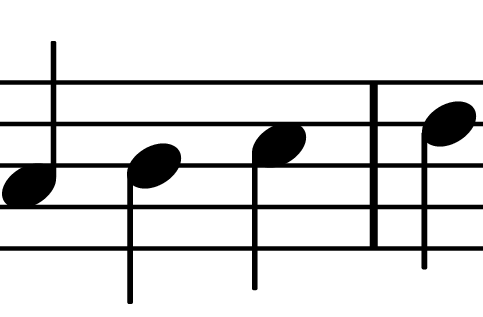
The template extracts a fragment from the input file that begins after the first half note in the second measure (2 1 4) and ends after the first half note in the third measure (3 1 4).
\version "2.24.4"

\layout {
  clip-regions = #(list
    (cons
      (make-rhythmic-location 2 1 4)
      (make-rhythmic-location 3 1 4))
  )
}

\relative c' {
  \time 4/4
  c4 d e f |    % Bar 1 (will be ignored in the clip)
  g4 a b c |    % Bar 2 (partially included)
  d4 c b a |    % Bar 3 (partially included)
  g4 f e d c1 | % Bars 4 and 5 (ignored)
}
Run the command lilypond -dclip-systems filename.ly, where, of course, you need to replace “filename.ly” with the real filename.
2. Output format: PDF and PNG.
The name of the output file from the previous operation is: “filename-from-2.1.4-to-3.1.4-clip.pdf”.
The official LilyPond manual states that, unless otherwise specified, the output format is EPS.
In fact, as shown by the filename above, the default output format is PDF.
Furthermore, the manual mentions the possibility of setting the output format to PNG but does not provide any examples.
But the solution is very simple: just include the format in the command line: lilypond -dclip-systems --png filename.ly.
Note the –png option, which directs the output to the PNG format.
Here is the name of the file generated by the previous operation: “filename-from-2.1.4-to-3.1.4-clip.png”.
3. Extracting a fragment from the beginning of a score
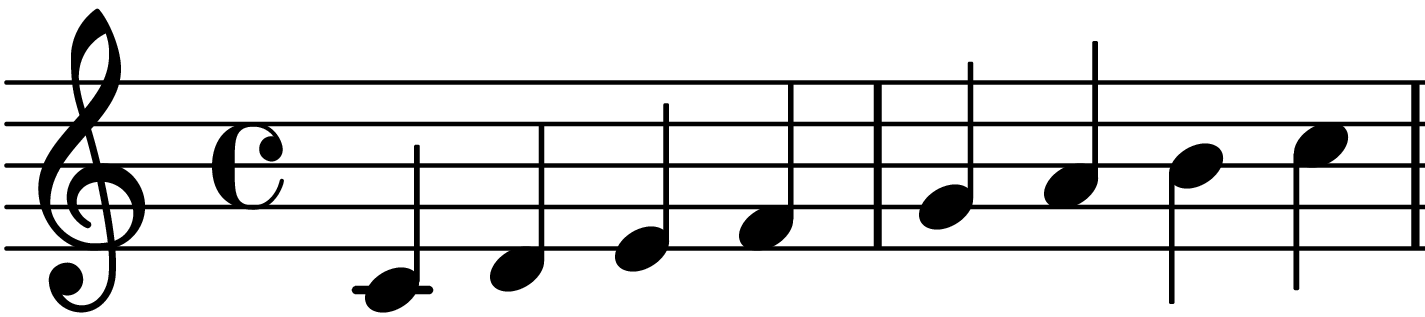
Another feature, also not covered in the manual: to extract a fragment that starts not after a note but at the beginning of a score, you must set the first make-rhythmic-location to musical “zero,” that is: “bar 1, beat 0.”
Below is a complete, working example for extracting a fragment that begins before the first quarter note in the first measure (1 0 4) and ends before the first quarter note in the third measure (3 0 4).
\version "2.24.4"

\layout {
  clip-regions = #(list
    (cons
      (make-rhythmic-location 1 0 4)
      (make-rhythmic-location 3 0 4))
  )
}

\relative c' {
  \time 4/4
  c4 d e f |    % Bar 1 (included)
  g4 a b c |    % Bar 2 (included)
  d4 c b a |    % Bar 3 (ignored)
  g4 f e d c1 | % Bar 4 e 5 (ignored)
}
Again, this is compiled using `lilypond -dclip-systems filename.ly`, where, of course, you need to replace `/filename/` with the appropriate filename.
4. Increasing Image Resolution
LilyPond’s default resolution is very low, typically 101 DPI.
This resolution is not at all suitable for printing high-quality documents, as the images appear noticeably pixelated.
To achieve a higher resolution, use the -dresolution option followed by the desired value (expressed in DPI).
For example, for professional print quality, you can set a value of 300 or 600.
I recommend 600 DPI, as the file size remains negligible.
Below is the complete command for generating the file: lilypond -dclip-systems -dresolution=600 --png filename.ly.
5. Quickly Exporting a Snippet
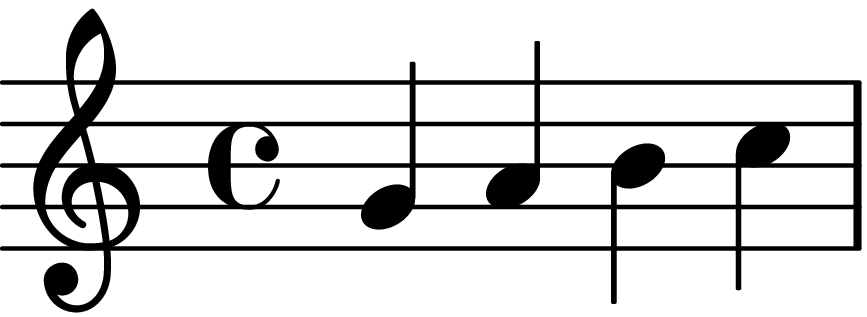
If your goal is to get a clean image of just a few measures without getting bogged down in “moments,” there’s a much simpler method that doesn’t require the -dclip-systems flag.
Here’s a code snippet:
Simply instruct LilyPond to crop the page around the notes.
\paper {
  indent = 0\mm
  line-width = 120\mm  % Regola la larghezza del frammento
  oddFooterMarkup = ##f
  oddHeaderMarkup = ##f
  bookTitleMarkup = ##f
  scoreTitleMarkup = ##f
}

{ \time 4/4 g'4 a' b' c'' }
In this case, the musical fragment is an integral part of the source file.
You must compile it using: lilypond --png -dpreview filename.ly.
In this case as well, it is possible—and indeed recommended—to set the resolution to 600 DPI using the -dresolution=600 option, as shown in the following snippet: lilypond -dresolution=600 --png -dpreview filename.ly.
This will generate a perfectly cropped file named filename.preview.png based on the fragment indicated at the end of the snippet.
Thank you for your attention.